
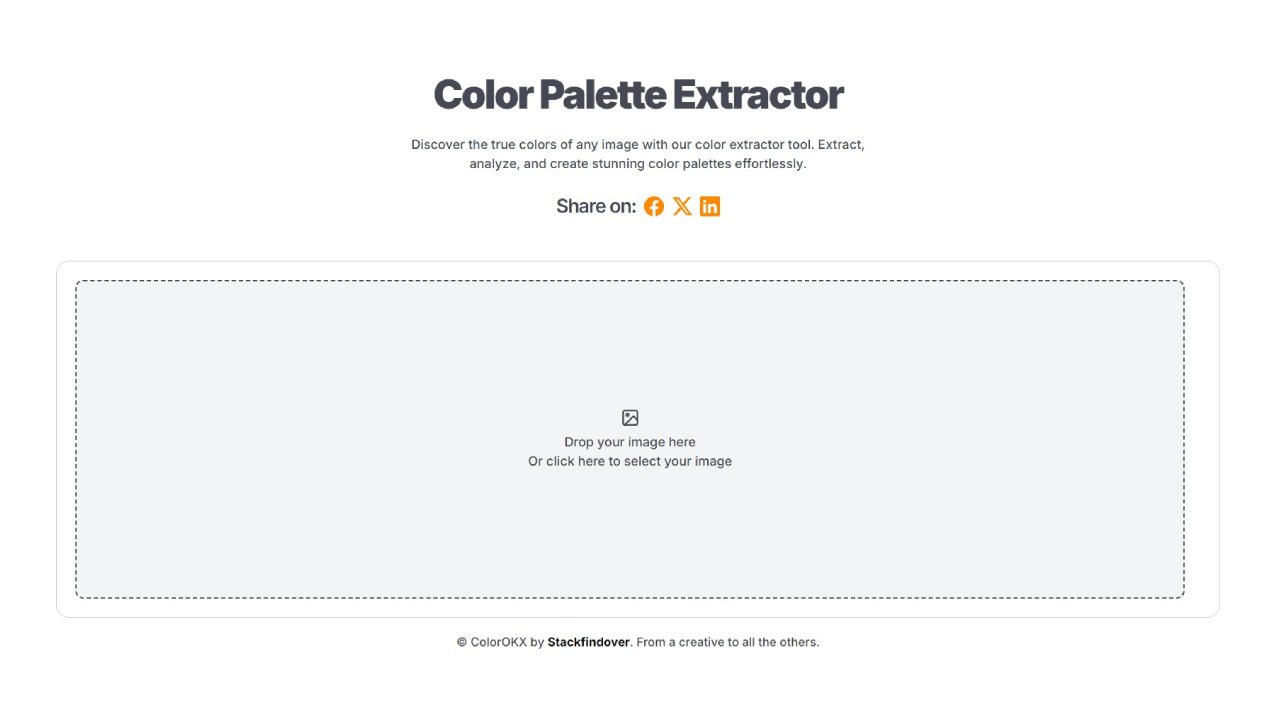
Color Palette Extractor from Image — Free Online Tool
You found the perfect photo. Maybe it’s a sunset over Rajasthan’s pink desert, a minimal product shot, or a mood board from a client. The colors in it are exactly what your design needs — but translating those colors into usable hex codes or RGB values by eye? That’s where most designers lose an hour ... Read more
or click to browse — PNG, JPG, WEBP, GIF supported
You found the perfect photo. Maybe it's a sunset over Rajasthan's pink desert, a minimal product shot, or a mood board from a client. The colors in it are exactly what your design needs — but translating those colors into usable hex codes or RGB values by eye? That's where most designers lose an hour they didn't have.
That's exactly what ColorOKX's Color Palette Extractor solves. Upload any image, and in seconds you get the dominant colors pulled out as clean, copy-ready values. No signup. No file size restrictions. No waiting. Just results.
Below, we'll walk you through how the tool works, who benefits from it, and how to use extracted palettes effectively in your real design workflow.
What Is a Color Palette Extractor?
A color palette extractor is a tool that analyzes every pixel in an uploaded image and identifies the most dominant, recurring colors. Instead of manually sampling colors with an eyedropper in Photoshop or Figma, the extractor does the heavy lifting automatically — producing a curated set of colors that represent the image's visual identity.
The result is typically a set of 5 to 10 color swatches, each paired with its hex code, making it immediately usable in CSS, design tools, or brand guidelines.
Think of it as the bridge between visual inspiration and technical execution.
How ColorOKX's Color Palette Extractor Works
The process is intentionally simple, but what happens behind the scenes is sophisticated.
Step 1 — Upload your image
Drag and drop any image directly onto the tool, or click to select it from your device. The tool accepts all standard formats including JPG, PNG, WebP, and GIF. There's no account required and no file stored on any server.
Step 2 — Automatic color analysis
The moment your image loads, the extractor runs a color quantization algorithm that scans pixel data across the entire image. It groups similar colors into clusters and identifies which shades appear most prominently, weighted by both frequency and visual salience.
This means a photo with a large blue sky doesn't just return "blue" — it returns the specific blue that sky actually is, complete with its hex code.
Step 3 — Adjust the dot count
ColorOKX gives you control over how many colors to extract using the dot slider. Fewer colors (3 to 4) give you a tight, minimal palette great for branding. More colors (8 to 10) give you a full spectrum useful for illustration or complex UI work.
Step 4 — Use the colors
Each extracted color appears as a swatch with its hex code displayed. Click any swatch to copy the hex code instantly. Use it directly in your CSS, Figma, Sketch, Adobe XD, or whichever design environment you work in.
Who Should Use This Tool?
Color palette extraction isn't just for one type of creator. Here's a breakdown of who gets the most value from it:
Graphic Designers
When a client shares a mood board or reference photo and says "I want something that feels like this," the extractor gives you the exact palette to match that feeling rather than approximating it.
Web and UI/UX Developers
If you're building a website and the hero section uses a photograph, extracting that image's colors ensures your typography, buttons, and UI elements stay visually coherent with the imagery — not just close, but exact.
Brand Managers
Need to maintain brand consistency across campaigns? Upload your logo or key brand imagery and extract the authoritative hex codes your team should be using. This removes guesswork from brand color application.
Social Media Content Creators
Consistent visual identity on Instagram or Pinterest is built on consistent color use. Extract your palette from your best-performing post and apply it as a template for future content.
Interior Designers and Architects
Real-world color inspiration — a fabric swatch, a paint chip, a landscape photo — can be uploaded and converted into digital color references to use in mood boards or client presentations.
Students and Beginners
Learning color theory is abstract until you can interact with real colors from images you're already drawn to. This tool makes that hands-on practice effortless and free.
5 Practical Ways to Use an Extracted Color Palette
- Build a website color system — Use 2 to 3 extracted colors as your primary, secondary, and accent colors. Then use ColorOKX's color wheel tool to generate tints and shades of each for hover states, backgrounds, and borders.
- Create brand guidelines — If you're building a brand from scratch, extracting colors from photography that matches the brand's personality gives you a data-driven starting point rather than an arbitrary one.
- Design cohesive social templates — Extract colors from your brand photography, then apply them consistently across all your Canva or Adobe templates. Audiences register consistency faster than they register individual posts.
- Match print and digital colors — Upload a scan of printed material to extract the closest digital equivalents. While CMYK-to-RGB conversion isn't perfect, this gets you far closer than guessing.
- Verify accessibility — After extracting a palette, run the foreground and background combinations through ColorOKX's Color Contrast Checker to confirm WCAG compliance before committing to a color scheme.
Tips for Getting the Most Accurate Results
The tool works with any image, but a few simple habits consistently produce better palettes:
- Use high-resolution images — The more pixel data the algorithm has, the more precise the color clusters become. Low-resolution or heavily compressed images can introduce color artifacts.
- Avoid heavily filtered photos — Vintage filters, high contrast presets, and cross-processing effects can distort the true dominant colors. For accurate brand color extraction, use unfiltered source images.
- Start with fewer colors, then expand — Begin with 5 colors and assess the palette. If you need more variation, gradually increase the count rather than jumping to 10 immediately.
- Match your use case to your color count — A logo usually needs 3 to 4 colors. A full illustration or complex UI might need 8 to 10. Let the project scope guide your slider setting.
- Screenshot rather than photograph — If you want to extract colors from an app, website, or digital artwork, take a screenshot rather than photographing your screen. Screenshots preserve exact pixel colors; photographs introduce lighting distortion.
Color Extractor vs. Color Picker: What's the Difference?
This is a common point of confusion worth clarifying.
A color picker — like the eyedropper tool in Photoshop or Figma — lets you sample a single, specific pixel. You choose exactly where to click, and it returns that pixel's color. It's precise but manual and time-consuming when you want multiple colors.
A color palette extractor analyzes the entire image automatically and surfaces the most representative colors across the full image — not just where you click. It's faster, broader, and far more useful when you want a holistic palette rather than spot-checking individual areas.
Both tools have their place. For quick, specific sampling: use a color picker. For building a complete color palette from an image: use the extractor.
What to Do After Extracting Your Palette
The extractor is your starting point, not your finish line. ColorOKX offers several tools that work naturally alongside it:
Color Wheel Picker — Once you have your primary extracted color, generate complementary, analogous, or triadic color relationships from it. Perfect for expanding a minimal extracted palette into a full system.
Color Contrast Checker — Test any two colors from your extracted palette against WCAG accessibility standards. Non-negotiable for any web project.
Color Converter — The extractor gives you hex codes. If your project needs RGB, HSL, or CMYK values instead, convert in seconds.
30,000+ Color Names Database — Curious what your extracted colors are actually called? Browse the full database to find the official name behind any hex code.
Frequently Asked Questions
Yes. There are no hidden charges, no premium tiers, and no signup walls. The tool is free to use as many times as you need.
The tool works with all standard image formats — JPG, PNG, WebP, and GIF are all fully supported. For best results, use PNG or high-quality JPG files.
No. Image processing happens entirely in your browser. Your files are never uploaded to any server, which means your images stay private and your data stays yours.
You control this using the dot count slider on the tool. The range typically goes from 3 to 10 colors, giving you flexibility depending on whether you need a tight minimal palette or a full color spectrum.
The algorithm prioritizes dominant, frequently-occurring colors. Very small color areas — a thin highlight, a subtle shadow, or a small accent element — may be below the threshold needed to register as a dominant color cluster. If a specific color is critical to your work, use ColorOKX's color wheel or converter tools to manually define it alongside your extracted palette.
Absolutely. The hex codes and color values the tool extracts are color information, not copyrightable assets. You can use them freely in commercial projects.
Yes. ColorOKX's Color Palette Extractor is fully responsive and works on smartphones and tablets. You can upload images directly from your camera roll and extract palettes on the go.
Start Extracting Colors from Your Images
Good design is consistent design, and consistent design starts with a coherent color palette. Whether you're pulling colors from a client's brand photography, a landscape that inspired you, or a reference screenshot from a site you admire — ColorOKX's Color Palette Extractor turns visual inspiration into immediately usable color values.Upload your image above, adjust the dot count to match your project's needs, and copy the hex codes that come out. Your color system is one upload away.